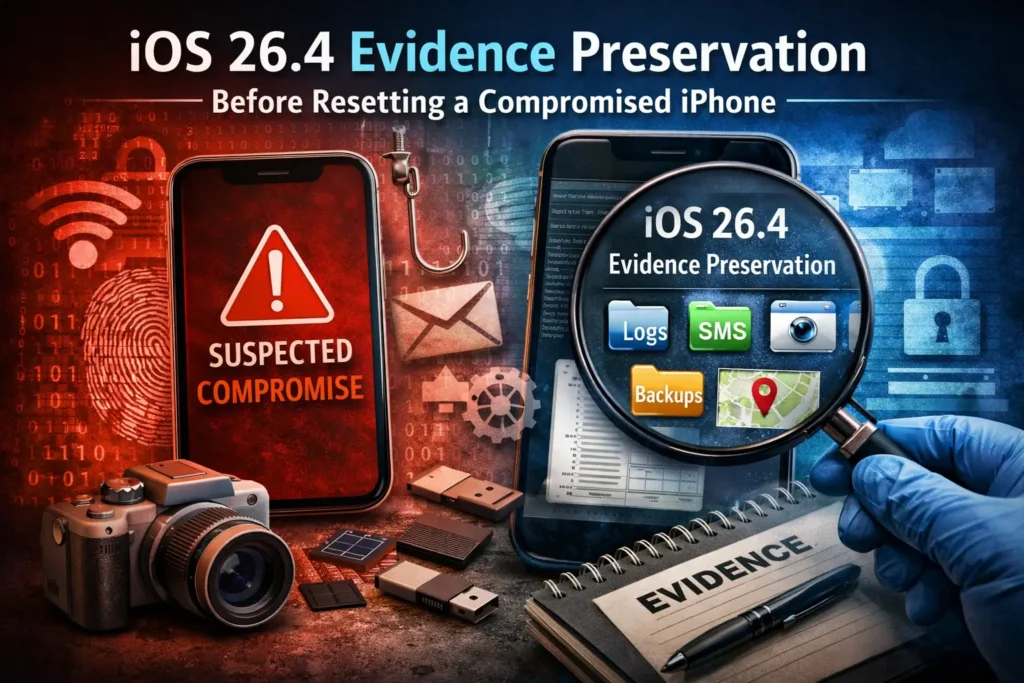
iOS 26.4 Evidence Preservation: What to Capture Before You Reset a Suspected-Compromised iPhone
Apple released iOS 26.4 and iPadOS 26.4 on March 24, 2026. This is not just another routine patch cycle. Apple’s advisory includes an 802.1X issue where an attacker in a privileged network position may be able to intercept traffic, an Accounts issue where an app may be able to access sensitive user data, an App Protection issue involving physical access and biometrics-gated protected apps, multiple kernel issues, a Keychain-related permissions issue, and several WebKit weaknesses affecting browser trust boundaries. Apple also says iOS 26.4 is the latest version and notes that iOS and iPadOS cannot be downgraded after an update. That is exactly why an iOS 26.4 security investigation may need to happen before anyone wipes, re-enrolls, or “just updates” a suspicious device.
For business owners, executives, IT teams, and regulated mobile fleets, the key question is no longer only, “Have we patched?” It is, “Do we still have a patching problem, or do we now have an incident that requires evidence preservation?” If the device may have handled sensitive company mail, passkeys, admin access, regulated data, or executive communications, a factory reset can destroy the very facts you need to answer what happened, when it started, what was exposed, and whether the risk spread beyond the iPhone. That evidence-first approach also aligns with how our DFIR Support works: preserve evidence, reconstruct timeline, assess impact, and then guide containment and recovery.
If your organization relies heavily on chat tools, you should also review our in-depth guide on chat-based attacks and evidence preservation.
What changed in iOS 26.4, and why it matters
The iOS 26.4 bulletin matters because it spans more than one attack surface.
- Network exposure: Apple lists an 802.1X issue where a privileged network-position attacker may be able to intercept traffic.
- Sensitive data access: Apple lists Accounts and Clipboard issues where an app may be able to access sensitive user data.
- Physical access risk: Apple lists an App Protection issue where a person with physical access to an iPhone may be able to access biometrics-gated protected apps with the passcode.
- Kernel and privilege concerns: Apple lists kernel issues involving disclosure of kernel memory, leakage of sensitive kernel state, and possible kernel memory corruption or writes.
- Keychain and browser trust boundaries: Apple lists a Security issue where a local attacker may gain access to Keychain items, plus multiple WebKit issues including Same Origin Policy bypass, CSP enforcement failure, cross-site scripting, and restricted-content processing outside the sandbox.
That combination changes triage. A suspicious iPhone on a hostile Wi-Fi network, an iPhone that was briefly out of the user’s control, or an iPhone tied to privileged SaaS and corporate mail may need investigation before reset because the advisory touches network trust, app isolation, web content handling, and local data access at the same time.
When a device needs investigation rather than a reset
A reset is a recovery action. It is not an investigation strategy.
A suspected-compromised iPhone should move into an evidence-preservation path when one or more of these are true:
- the device belongs to an executive, finance user, admin, developer, or regulated-data user
- the phone had access to Microsoft 365, Google Workspace, Slack, VPN, MDM, cloud consoles, banking apps, or production systems
- the user reports unexplained Apple ID alerts, suspicious prompts, unknown approvals, odd battery or data spikes, unusual profile behavior, or strange browser/network activity
- the device was lost, borrowed, seized, or left unattended
- there is any chance the incident involves phishing, token theft, account takeover, malicious Wi-Fi, captive portal abuse, or lateral movement into company systems
Our own DFIR material frames the right mindset well: if you may need to prove root cause, reconstruct timeline, or measure impact, you are already beyond “just wipe it.”
Related internal reading for you that supports this approach:
- Android Security Bulletin March 2026: DFIR Triage,
- Google Workspace Account Takeover Investigation,
- 7 Proven Digital Forensic Analysis Steps for Legal Evidence.
iOS 26.4 Security Investigation (Minimum evidence set to preserve before wiping or re-enrolling)
Do not wait for the perfect forensic workflow before you capture the basics. Start with the highest-value facts that are easiest to lose.
1) Device identity and update state
Record the following immediately:
- iPhone model
- serial number or asset ID
- iOS version and build
- whether the device is company-managed, BYOD, or executive-issued
- whether Stolen Device Protection, Find My, and MDM are enabled
- current carrier, Wi-Fi SSID, VPN status, and approximate location context if relevant to the incident
Take screenshots of:
- Settings > General > About
- Settings > Apple Account device list and security-related notices
- Settings > VPN & Device Management
- battery/network screens if the complaint involves unusual usage or traffic
Because Apple does not allow downgrade after updating iOS, capturing version and build context before any patching decision is part of evidence preservation, not paperwork.
2) Account and identity evidence
Preserve the surrounding identity picture, not just the handset.
Capture or export:
- Apple security alert emails and SMS messages
- screenshots of recent Apple Account prompts or unfamiliar device notices
- MDM logs showing last check-in, compliance state, app inventory, profile changes, or unenrollment
- corporate IdP logs tied to the user
- mailbox alerts, MFA change alerts, and suspicious sign-in notices
- relevant helpdesk or SOC ticket notes with UTC timestamps
This matters because a mobile incident often becomes an account incident. A suspicious iPhone can be the start of a broader Apple ID, email, SaaS, or token-abuse investigation.
3) Application, profile, and management state
Document the device before anyone “cleans it.”
Capture:
- installed managed apps
- unusual newly installed apps
- configuration profiles
- certificates
- VPN profiles
- mail account configuration
- browser state if the incident followed a phishing page, captive portal, or web prompt
- whether the device recently stopped complying with MDM policy
For a company-managed device, export the MDM view immediately. In many real-world cases, that management snapshot becomes the cleanest source of truth after the device is replaced.
4) Communications and network indicators
Preserve:
- suspicious SMS, iMessage, email, calendar invite, or browser prompt that preceded the incident
- URL, hostname, QR code, or attachment details
- Wi-Fi network name and approximate time of connection
- VPN connection details
- mail content or remote-content behavior if the case is email-driven
That last point matters because Apple’s 26.4 advisory also includes a Mail privacy issue where “Hide IP Address” and “Block All Remote Content” may not apply to all mail content. In an email-led incident, that makes preservation more important, not less.
5) Backups and nearby evidence
Before reset or reenrollment, determine whether any of the following already exist:
- encrypted local Finder backups
- enterprise backup records
- MDM exports
- cloud/mail logs
- firewall, proxy, DNS, or SWG logs
- conditional access or device-compliance records
If a new backup will be created as part of your incident process, document who created it, when, on what workstation, and hash the exported artifact immediately.
Example: simple Mac evidence-handling commands
CASE="ios-incident-$(date -u +%Y%m%dT%H%M%SZ)"
mkdir -p "$CASE"/{notes,exports,hashes,screenshots}

# Example: hash exported evidence files
shasum -a 256 "$CASE/exports/mdm-device-export.csv" > "$CASE/hashes/mdm-device-export.csv.sha256"
shasum -a 256 "$CASE/screenshots/about-page.png" > "$CASE/hashes/about-page.png.sha256"

# Start a basic case log
cat > "$CASE/notes/case-log.md" <<'EOF'
# iPhone incident case log
- Time standard: UTC
- Device owner:
- Device asset ID:
- First symptom observed:
- Who collected evidence:
- Evidence preserved so far:
- Next approved action:
EOF
Example: lightweight preservation worksheet
case_id: IOS-2026-04-INC-001
time_standard: UTC
device_owner: [email protected]
ownership_type: corporate
device_model: iPhone 15 Pro
ios_version: 26.4
build: "<record exact build>"
mdm_managed: true
stolen_device_protection: enabled
find_my: enabled
first_observed: "2026-04-06T09:14:00Z"
suspected_trigger: "suspicious captive portal + Apple ID alert"
preserved_items:
  - screenshots of About / Apple Account / VPN & Device Management
  - MDM export
  - Apple security alert email
  - VPN log reference
  - corporate IdP sign-in log reference
approved_next_action: "contain network access; no wipe until triage complete"
Containment without destroying evidence
Containment should reduce risk while preserving the trail.
Start with these principles:
- do not factory-reset the device as a first move
- do not remove apps, delete mail, clear browser history, or remove profiles before minimum preservation is complete
- do not change facts on the phone itself if you can perform safer account actions from a clean admin workstation
- document every action and timestamp it
A practical containment sequence often looks like this:
- Record device state first.
- Move the phone off risky Wi-Fi or hostile network conditions if required.
- Use a clean workstation to review Apple Account, IdP, MDM, and mail activity.
- Revoke risky sessions or rotate credentials from the clean side when needed.
- Decide whether the phone should be quarantined, replaced and held, or escalated to deeper DFIR.
- Patch, re-enroll, or wipe only after the evidence threshold is met.
For company-managed fleets, this is where our Digital Forensic Analysis Services and Remediation Services fit: preserve first, contain safely, then fix root cause and harden the environment.
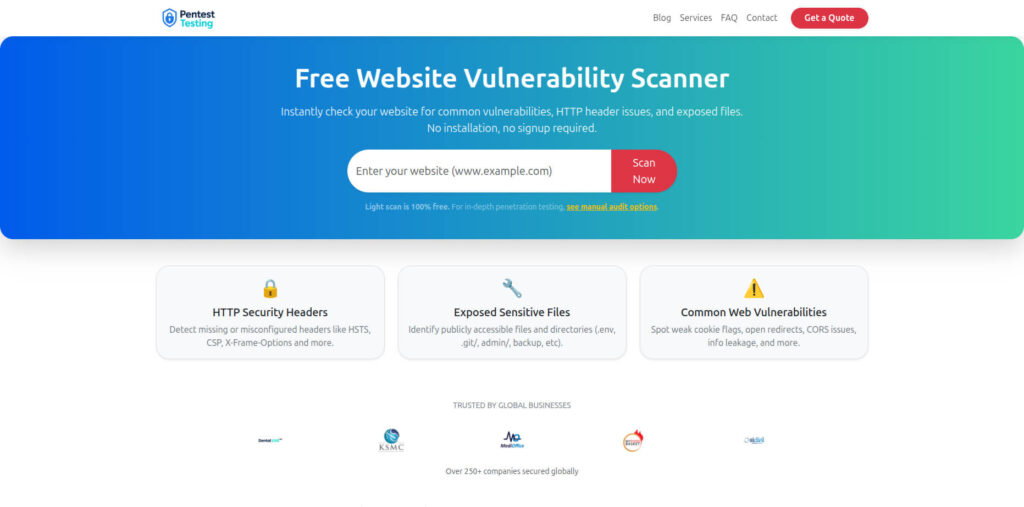
Screenshot of the Free Website Vulnerability Scanner
When to escalate immediately
Escalate beyond routine support if any of the following apply:
- the device belongs to a VIP, privileged admin, finance approver, or legal/regulatory stakeholder
- the phone had access to regulated or customer data
- there are unexplained Apple ID alerts, password changes, MFA changes, or trusted-device changes
- the device shows profile abuse, MDM anomalies, or signs of account-linked compromise
- there is evidence of malicious Wi-Fi, captive portal abuse, phishing, or browser-based exploitation
- there are signs the issue spread into email, SaaS, cloud consoles, or corporate admin surfaces
- the organization may need evidence for legal, insurance, audit, or regulator-facing purposes
Apple’s 26.4 advisory includes multiple issues that touch network traffic, sensitive user data, local protections, browser trust, and credential material. In other words, there are credible scenarios where the handset is only one part of the incident.
Where Pentest Testing Corp fits
If you need fast incident handling, start with Digital Forensic Analysis Services. That service is already positioned around evidence preservation, timeline reconstruction, impact assessment, and practical containment across iPhone/iOS, Android, email, cloud accounts, and broader device incidents.
If the investigation reveals broader control failures, move into Remediation Services to close the technical and procedural gaps that let the incident happen in the first place. If the root cause touches your app, insecure storage, transport security, reverse engineering exposure, or backend API abuse paths, pair the incident work with Mobile Application Penetration Testing.
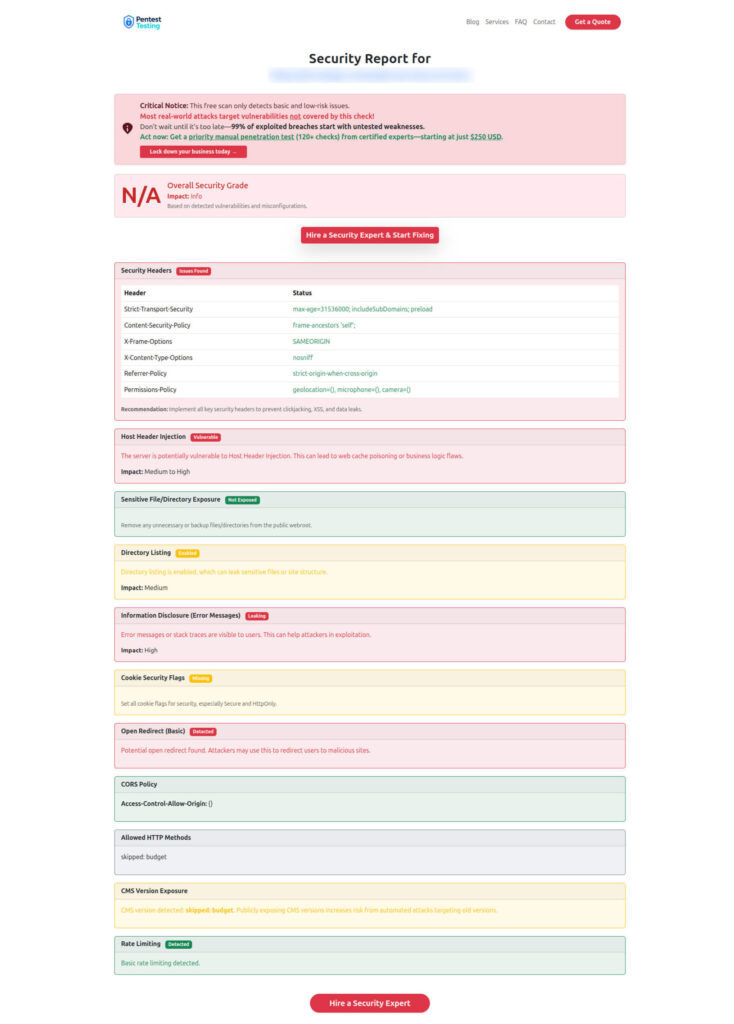
Sample report by our tool to check Website Vulnerability
Final takeaway
The wrong first move in an iOS incident is often the fastest one.
If the device is merely outdated, update it. If the device is suspicious, treat it like evidence first. Preserve the device state, account signals, management records, and surrounding logs before you wipe or re-enroll it. That is how you keep the option to answer the questions leadership will ask later: What happened? When did it start? What was exposed? Did it spread? And what do we need to fix next?
Start with evidence preservation before wiping or re-enrolling devices. For urgent support, begin with Digital Forensic Analysis Services. If you also need to harden the affected environment, continue with Remediation Services. If mobile-app design or backend trust boundaries may have contributed, add Mobile Application Penetration Testing. For a quick related web check during triage, run the Free Website Vulnerability Scanner.
🔐 Frequently Asked Questions (FAQs)
Find answers to commonly asked questions about iOS 26.4 security investigation.