7 Critical iPhone Suspicious Activity DFIR Checklist (After WebKit Zero-Days)
If you’re seeing iPhone suspicious activity—random pop-ups, Safari opening tabs you didn’t click, sudden battery drain, unexpected device heat, repeated logouts, or “new device signed in” alerts—do not factory reset first. A reset can destroy the best evidence your responders need to confirm what happened, how it happened, and what else is affected.
This guide is a DFIR (Digital Forensics & Incident Response) preservation + triage playbook designed for executives, SMB IT, and SOC/IR teams responding to risk tied to WebKit zero-days that Apple has described as exploited in highly sophisticated attacks (patched in iOS/iPadOS 26.2-era trains).
If you’re patching high-severity mobile and desktop bulletins, don’t stop at “updated”—use our Rapid DFIR checklist to document evidence and verify endpoint integrity: https://www.pentesttesting.com/rapid-dfir-checklist-patch-to-proof/
Related resources (Pentest Testing Corp):
- DFIR help: https://www.pentesttesting.com/digital-forensic-analysis-services/
- Risk Assessment: https://www.pentesttesting.com/risk-assessment-services/
- Remediation: https://www.pentesttesting.com/remediation-services/
What “WebKit zero-day” means for iPhone suspicious activity
A WebKit zero-day is a vulnerability in the web rendering engine used by Safari and in-app browsers. On iPhone/iPad, even “non-Safari” browsing often still uses WebKit under the hood—so WebKit exposure is broad, and “we don’t use Safari” is not a reliable risk argument.
Targeted vs opportunistic: what to assume
- Targeted compromise is more likely when: you’re an exec, finance approver, admin, journalist, activist, high-net-worth, or you handle sensitive customer/regulated data; you received “weird” links; you saw Apple ID sign-in anomalies; or the device began acting oddly right after a message/link event.
- Opportunistic compromise is more likely when: a mass phishing wave is active and users are clicking broadly, or unmanaged devices are lagging behind on updates.
Practical rule: if you have iPhone suspicious activity plus account alerts (Apple ID/IdP/email) or business impact (fraud attempt/BEC), treat it as a potential incident until proven otherwise.
The 7-Step DFIR Checklist (Before You Factory Reset)
1) Freeze the situation (without destroying evidence)
Do
- Take photos/screenshots of: pop-ups, Safari tabs, “new device” alerts, battery graphs, VPN prompts, and any security notifications.
- Note the time suspicious behavior started and what you were doing (opened link, email, document, app).
Don’t
- Don’t factory reset.
- Don’t “clean up” by deleting Safari history, messages, profiles, or unknown apps.
If you must reduce risk immediately: enable Airplane Mode first, then proceed to Step 2.
2) Choose the right isolation method (power state matters)
Preservation often conflicts with containment. Here’s a safe middle ground for iPhone suspicious activity:
Recommended isolation order
- Airplane Mode (stops most network traffic)
- Disable Wi-Fi and Bluetooth (confirm icons are off)
- If the device is on a managed fleet, ask IT to place it in a quarantine group (restricted network/VPN) via MDM
- Avoid powering off unless your IR lead instructs it (power state can affect volatile artifacts)
Why: keeping the device on may preserve active context/logging, while isolation reduces ongoing risk.
3) Preserve evidence quickly (15–30 minutes)
Your goal is to create a minimum viable evidence pack that survives audit/legal scrutiny.
Evidence pack folder structure (simple + repeatable)
mkdir -p "CASE_iphone_suspicious_activity"/{notes,photos,mdm_exports,backups,hashes}Create a timestamped notes file
cat > "CASE_iphone_suspicious_activity/notes/timeline.txt" <<'EOF'
Device owner:
Device model:
iOS version (Settings > General > About):
Time suspicious activity started:
What happened just before it started (link/app/email):
Observed symptoms:
Account alerts (Apple ID/Email/IdP/Banking):
Network at time (home/office/hotel/cellular):
EOF
Preserve an encrypted local backup (preferred)
If you have a Mac/PC available, take an encrypted backup. Encryption matters because it captures more artifacts than an unencrypted backup.
Option A: Finder/iTunes (human workflow)
- Connect iPhone → select device → choose Encrypt local backup → set strong password → Back Up Now
- Save the backup password to your case notes.
Option B: Command-line (repeatable) with libimobiledevice
# On macOS/Linux where libimobiledevice is installed
ideviceinfo | tee "CASE_iphone_suspicious_activity/notes/ideviceinfo.txt"

# Full backup to a controlled folder
idevicebackup2 backup --full "CASE_iphone_suspicious_activity/backups/ios_backup_full"
Hash what you collected (chain-of-custody friendly)
# macOS/Linux
find "CASE_iphone_suspicious_activity" -type f -print0 | xargs -0 shasum -a 256 \
  > "CASE_iphone_suspicious_activity/hashes/SHA256SUMS.txt"
4) Rapid triage: what users can observe vs what responders should collect
User-visible indicators of iPhone suspicious activity
- Safari opens tabs you didn’t request
- Unusual permission prompts (camera/mic/location)
- Battery drain + heat without heavy usage
- Password prompts repeating unexpectedly
- MFA prompts you didn’t trigger
- “New device signed in” / Apple ID changes
- Unknown VPN icon/profile prompt
Responder collection checklist (fast wins)
Ask for / export:
- MDM inventory & compliance export (OS version, profiles, VPN, installed apps)
- Apple ID security status screenshots (trusted devices list, sign-in notifications)
- Safari artifacts from backup (History, Downloads, WebsiteData where accessible)
- Any corporate IdP logs (sign-ins, session revocations, impossible travel)
- Email security events (malicious link clicks, safe-links detonations)
If you run a managed Apple environment, this is where your MDM export becomes the “single source of truth” for scoping.
Example: Parse an MDM export to find risky OS versions (Python)
import csv

MIN_SAFE_VERSION = "26.2"  # adjust to your policy baseline

def version_tuple(v):
    return tuple(int(x) for x in v.split(".") if x.isdigit())

with open("mdm_inventory.csv", newline="", encoding="utf-8") as f:
    rows = list(csv.DictReader(f))

at_risk = []
for r in rows:
    os_ver = (r.get("os_version") or r.get("OsVersion") or "").strip()
    if os_ver and version_tuple(os_ver) < version_tuple(MIN_SAFE_VERSION):
        at_risk.append((r.get("device_name"), r.get("user"), os_ver))

print("At-risk devices:")
for d, u, v in at_risk:
    print(f"- {d} | {u} | {v}")
5) Extract high-signal Safari artifacts from an iPhone backup (practical DFIR)
A WebKit/Safari-linked event often leaves traces in browsing history, downloads, and website data.
Find Safari databases in an iOS backup (Manifest.db) – Python
import sqlite3
from pathlib import Path

manifest = Path("CASE_iphone_suspicious_activity/backups/ios_backup_full/Manifest.db")
conn = sqlite3.connect(manifest)
cur = conn.cursor()

keywords = ["History.db", "Safari", "WebKit", "Cookies", "Downloads"]
for kw in keywords:
    cur.execute("""
        SELECT fileID, domain, relativePath
        FROM Files
        WHERE relativePath LIKE ?
        LIMIT 25
    """, (f"%{kw}%",))
    results = cur.fetchall()
    print(f"\n--- Matches for {kw} ---")
    for fileID, domain, rel in results:
        print(fileID, domain, rel)

conn.close()
If you extract History.db, list recent visits (Python)
import sqlite3
from datetime import datetime, timedelta

# Safari timestamps are often Mac Absolute Time (seconds since 2001-01-01)
MAC_EPOCH = datetime(2001, 1, 1)

db = sqlite3.connect("extracted/History.db")
cur = db.cursor()

cur.execute("""
SELECT
  datetime(visit_time + strftime('%s','2001-01-01'),'unixepoch') AS visit_dt,
  url
FROM history_visits
JOIN history_items ON history_visits.history_item = history_items.id
ORDER BY visit_time DESC
LIMIT 50;
""")

for visit_dt, url in cur.fetchall():
    print(visit_dt, url)

db.close()
What to look for (triage clues):
- Short burst of visits in seconds
- Redirect chains
- Unfamiliar domains right before symptoms began
- “Clickless” browsing patterns around message receipt time
6) Containment: credentials, sessions, and BEC linkage
WebKit exploitation is often used to gain a foothold and then pivot into accounts (email, SSO, banking, approvals).
Containment actions (safe + high impact)
- Change Apple ID password after preservation steps (so you don’t erase context prematurely)
- Enable/confirm MFA and remove unknown trusted devices
- Revoke sessions on your corporate IdP (Microsoft Entra/Google Workspace/Okta, etc.)
- Rotate email app passwords / tokens if used
- For finance teams: add temporary out-of-band verification for approvals
Example: Revoke user sessions (Microsoft Graph pattern)
POST /v1.0/users/{id}/revokeSignInSessions
Authorization: Bearer {token}
Content-Type: application/json
BEC warning: If suspicious activity touches an exec’s iPhone, assume elevated risk for phishing and payment fraud, not just “device weirdness.”
7) Decide when to escalate to full DFIR (and what you should get)
Escalate beyond basic triage if any of these are true:
- High-risk role (exec/admin/finance) + iPhone suspicious activity
- Confirmed account compromise or unknown trusted device
- Signs of persistence (MDM/profile anomalies, VPN/proxy insertion)
- Legal/regulatory exposure (PII/PHI/PCI, contractual obligations)
- Repeated re-compromise after password resets
What a proper DFIR engagement should deliver
- A defensible timeline (what happened, when, and how confident we are)
- Root cause hypothesis with supporting artifacts
- Scope (which accounts/devices/data are impacted)
- Containment + remediation plan (technical + process fixes)
- Executive-ready incident report for stakeholders/customers (when needed)
If you want a team to run this end-to-end, start here:
https://www.pentesttesting.com/digital-forensic-analysis-services/
And if your environment needs broader verification/hardening:
- Risk Assessment: https://www.pentesttesting.com/risk-assessment-services/
- Remediation: https://www.pentesttesting.com/remediation-services/
“Before You Reset” Decision Tree (fast)
- Do you have iPhone suspicious activity + account alerts? → Preserve evidence (Step 3) → Contain sessions (Step 6) → DFIR likely
- Do you have iPhone suspicious activity only? → Preserve evidence → Patch/update → Monitor for recurrence
- Is the device used for approvals/finance/admin? → Treat as high risk → DFIR recommended
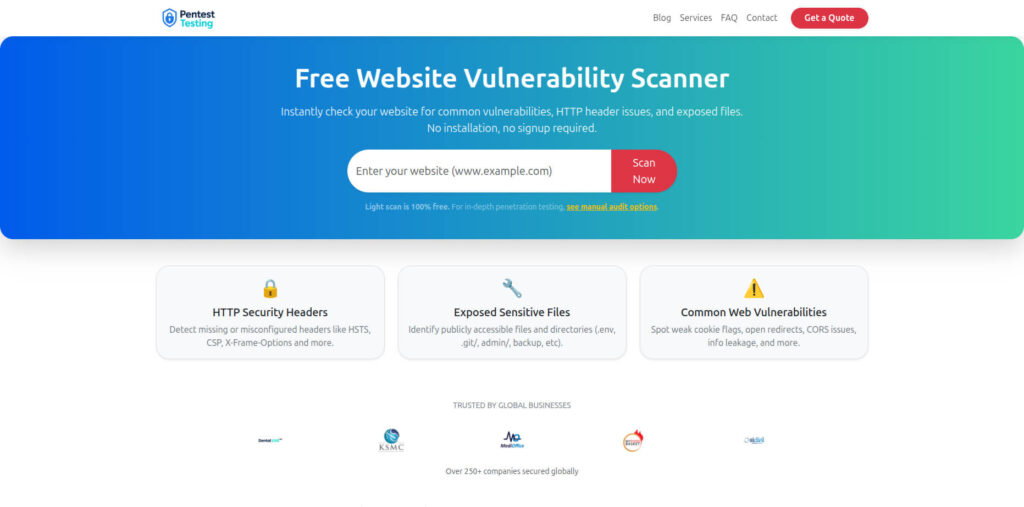
Free Tool Dashboard (Free Website Vulnerability Scanner)
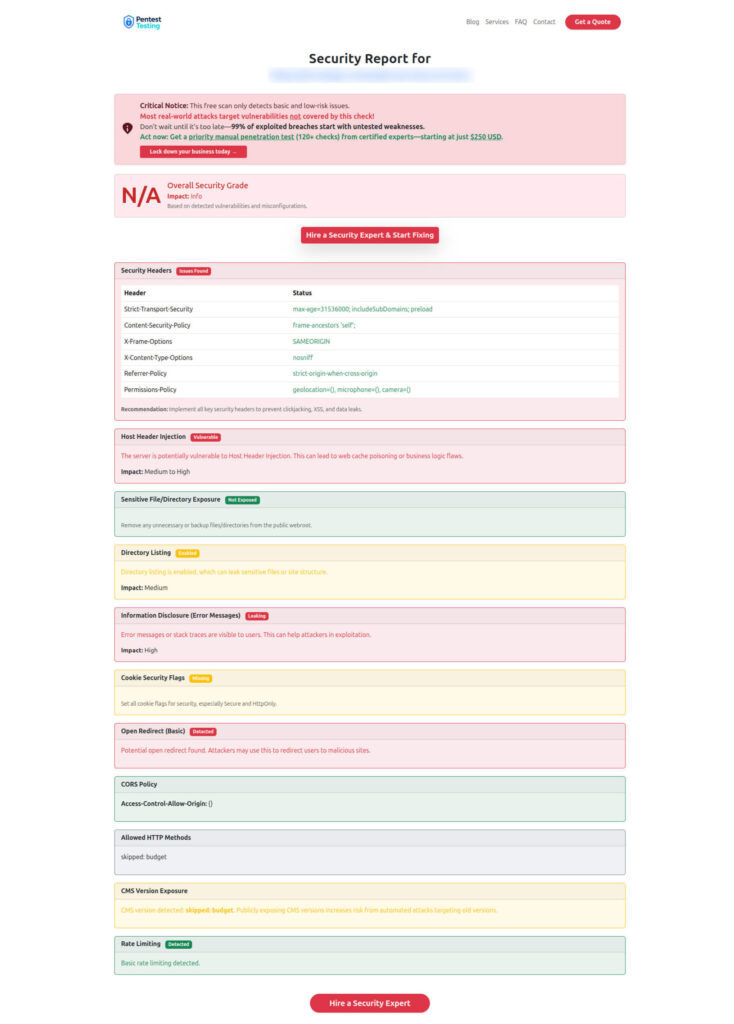
Sample Report to check Website Vulnerability (from the free tool)
Related Reading From Our Blog (recent)
- 2 Critical WebKit Zero-Days: 48-Hour Patch Plan
https://www.pentesttesting.com/webkit-zero-day-48-hour-patch-playbook/ - 7 Critical Digital Forensics Steps: Am I Hacked?
https://www.pentesttesting.com/digital-forensics-am-i-hacked-dfir-triage/ - 7 Powerful Windows Malware Forensics Wins: Memory+KAPE
https://www.pentesttesting.com/windows-malware-forensics-memory-kape/
🔐 Frequently Asked Questions (FAQs)
Find answers to commonly asked questions about iPhone Suspicious Activity + WebKit Zero-Days.