7 Critical Digital Forensics Steps: Am I Hacked?
If your laptop suddenly runs hot, your browser keeps logging you out, invoices “you didn’t send” appear in Sent Items, or colleagues say they received weird emails from you—pause. Those are classic account takeover and device compromise signals.
This post is an SMB-friendly, DFIR-first (Digital Forensics & Incident Response) triage playbook for:
- Windows and macOS endpoints
- Gmail / Google Workspace accounts
- Microsoft 365 (Entra ID + Exchange Online) identities and mailboxes
You’ll learn what not to do, what to preserve, how to reconstruct a timeline, and how to contain safely—without destroying evidence you may need for recovery, insurance, legal, or customer trust.

Want a practical DFIR walkthrough? Read our newest post: Windows Malware Forensics Wins: Memory + KAPE (step-by-step) → https://www.pentesttesting.com/windows-malware-forensics-memory-kape/
Need expert help fast?
1) The 15-minute intake: symptoms → scope → what changed
Don’t start “fixing.” Start scoping.
Intake questions (copy/paste into your incident notes)
- What is the primary symptom?
- suspicious email sends, password reset prompts, MFA fatigue, unknown devices, popups, browser redirects, “new admin” alerts
- Which assets are involved?
- Windows/macOS device names, primary email accounts, shared mailboxes, finance apps, password manager, admin accounts
- What changed in the last 7 days?
- new extensions, “free” software, remote support sessions, new OAuth app consent, mailbox forwarding, new DNS/hosting changes
- Who else is impacted?
- executives, finance, IT admins, inboxes that handle payments
- Business impact:
- wire fraud risk, customer data exposure, operational downtime
Create a case folder immediately
Windows (PowerShell, run as Admin):
$CaseId = "CASE-" + (Get-Date -Format "yyyyMMdd-HHmm")
$Base   = "C:\IR\$CaseId"
New-Item -ItemType Directory -Force -Path $Base | Out-Null
New-Item -ItemType Directory -Force -Path "$Base\exports","$Base\logs","$Base\hashes" | Out-Null
"$CaseId created at $Base" | Out-File "$Base\README.txt"
macOS (Terminal):
CASE_ID="CASE-$(date +%Y%m%d-%H%M)"
BASE="$HOME/IR/$CASE_ID"
mkdir -p "$BASE"/{exports,logs,hashes}
echo "$CASE_ID created at $BASE" > "$BASE/README.txt"
2) What NOT to do (this destroys evidence)
If you suspect Gmail hacked / Microsoft 365 compromised / malware:
- Don’t reinstall the OS yet (you’ll erase critical artifacts).
- Don’t “clean” with random tools or registry cleaners.
- Don’t change passwords from the suspected device (use a known-clean device).
- Don’t delete suspicious emails/rules/apps before exporting key evidence.
- Don’t disable logging “to reduce noise” (you’ll lose the timeline).
- Don’t forward your whole mailbox to “save emails” (you may worsen data exposure).
- The same principle applies to routers, firewalls, and VPN appliances at the network edge, where the evidence is even easier to lose on reboot. See our edge device forensics guide for that device class specifically
If the threat is active (ransomware encryption, live attacker, ongoing fraud): isolate first, preserve second.
3) Evidence preservation: do/don’t list (fast + practical)
Preserve endpoint evidence
Windows – export core event logs
$Out = "C:\IR\exports"
New-Item -ItemType Directory -Force -Path $Out | Out-Null

wevtutil epl Security "$Out\Security.evtx"
wevtutil epl System "$Out\System.evtx"
wevtutil epl Application "$Out\Application.evtx"
wevtutil epl "Microsoft-Windows-PowerShell/Operational" "$Out\PowerShell-Operational.evtx"
Windows – capture persistence + user/admin changes
$Out = "C:\IR\exports"
Get-LocalUser | Select Name,Enabled,LastLogon | Export-Csv "$Out\local_users.csv" -NoTypeInformation
Get-LocalGroupMember Administrators | Select Name,ObjectClass | Export-Csv "$Out\local_admins.csv" -NoTypeInformation

schtasks /Query /V /FO CSV > "$Out\scheduled_tasks.csv"
Get-CimInstance Win32_Service | Select Name,State,StartMode,PathName | Export-Csv "$Out\services.csv" -NoTypeInformation

reg query "HKLM\Software\Microsoft\Windows\CurrentVersion\Run"    /s > "$Out\run_hklm.txt"
reg query "HKCU\Software\Microsoft\Windows\CurrentVersion\Run"    /s > "$Out\run_hkcu.txt"
Windows – capture network connections (high signal)
$Out = "C:\IR\exports"
Get-NetTCPConnection | Select LocalAddress,LocalPort,RemoteAddress,RemotePort,State,OwningProcess |
  Export-Csv "$Out\net_connections.csv" -NoTypeInformation

Get-Process | Select Id,ProcessName,Path,StartTime -ErrorAction SilentlyContinue |
  Export-Csv "$Out\processes.csv" -NoTypeInformation
macOS – capture unified logs (time-bounded)
BASE="$HOME/IR/CASE-$(date +%Y%m%d-%H%M)"
mkdir -p "$BASE/exports"
# Last 24 hours of logs
log show --last 24h --style syslog > "$BASE/exports/unifiedlog_last24h.txt"
# Login-related signals
log show --last 24h --predicate 'eventMessage CONTAINS[c] "Authentication" OR eventMessage CONTAINS[c] "login"' \
  --style syslog > "$BASE/exports/auth_signals_last24h.txt"
macOS – persistence & profiles
BASE="$HOME/IR/CASE-$(date +%Y%m%d-%H%M)"
mkdir -p "$BASE/exports"

ls -al /Library/LaunchAgents    > "$BASE/exports/launchagents_library.txt"
ls -al /Library/LaunchDaemons   > "$BASE/exports/launchdaemons_library.txt"
ls -al "$HOME/Library/LaunchAgents" > "$BASE/exports/launchagents_user.txt"

profiles status -type enrollment > "$BASE/exports/profiles_enrollment.txt" 2>&1
profiles show -type configuration > "$BASE/exports/profiles_configuration.txt" 2>&1
Preserve identity + email evidence
For account takeover investigation, prioritize:
- Sign-in history (IPs, devices, geo, user agents)
- MFA changes / recovery method changes
- Mailbox rules (forwarding, hidden rules, “delete/move” rules)
- Suspicious OAuth app consents / third-party apps
Microsoft 365 (Exchange Online) – mailbox rules & forwarding
# Requires Exchange Online PowerShell
Connect-ExchangeOnline

$user = "[email protected]"
Get-InboxRule -Mailbox $user | Select Name,Enabled,Description,Priority |
  Export-Csv ".\m365_inboxrules.csv" -NoTypeInformation

Get-Mailbox $user | Select UserPrincipalName,ForwardingSmtpAddress,DeliverToMailboxAndForward |
  Export-Csv ".\m365_forwarding.csv" -NoTypeInformation

Get-MailboxPermission $user | Select User,AccessRights,IsInherited |
  Export-Csv ".\m365_mailbox_permissions.csv" -NoTypeInformation
Microsoft 365 (Entra ID) – sign-ins + revoke sessions
# Requires Microsoft Graph PowerShell
Connect-MgGraph -Scopes "AuditLog.Read.All","User.ReadWrite.All"

$userId = (Get-MgUser -UserId "[email protected]").Id

# Last 7 days sign-ins (may require tenant settings/roles)
Get-MgAuditLogSignIn -Filter "userId eq '$userId'" -Top 50 |
  Select CreatedDateTime,IpAddress,AppDisplayName,ClientAppUsed,ConditionalAccessStatus,Status |
  Export-Csv ".\entra_signins_top50.csv" -NoTypeInformation

# Revoke refresh tokens / sessions
Revoke-MgUserSignInSession -UserId $userId
Gmail / Google Workspace – programmatic triage (optional but powerful)
If you have Workspace admin access, export login and token/app activity via APIs. Example pattern (Python skeleton):
# Google Workspace Reports API example (admin context)
# Goal: pull recent login events for "account takeover investigation"
from datetime import datetime, timedelta
from googleapiclient.discovery import build
from google.oauth2 import service_account

SCOPES = ["https://www.googleapis.com/auth/admin.reports.audit.readonly"]
creds = service_account.Credentials.from_service_account_file(
    "service-account.json", scopes=SCOPES
)
svc = build("admin", "reports_v1", credentials=creds)

user_email = "[email protected]"
start = (datetime.utcnow() - timedelta(days=7)).isoformat() + "Z"

resp = svc.activities().list(
    userKey=user_email,
    applicationName="login",
    startTime=start,
    maxResults=100
).execute()

for item in resp.get("items", []):
    ip = item.get("ipAddress")
    t  = item.get("id", {}).get("time")
    ev = item.get("events", [{}])[0].get("name")
    print(t, ip, ev)
4) Timeline reconstruction: endpoint + identity + email correlation
A clean DFIR timeline usually needs three clocks:
- Endpoint clock: process execution, persistence creation, browser extension installs
- Identity clock: suspicious logins, MFA resets, token grants
- Email clock: rule creation, forwarding change, unusual sends
Simple correlation approach (CSV + Python)
Export:
- Windows Event Log summary (or EDR export)
- Entra sign-ins CSV
- Inbox rules/forwarding export
Then correlate around suspicious time windows:
import pandas as pd

endpoint = pd.read_csv("endpoint_events.csv")   # columns: timestamp, host, event_type, detail
signins  = pd.read_csv("entra_signins.csv")     # columns: CreatedDateTime, IpAddress, AppDisplayName
email    = pd.read_csv("mailbox_changes.csv")   # columns: timestamp, change_type, detail

endpoint["timestamp"] = pd.to_datetime(endpoint["timestamp"], utc=True)
signins["CreatedDateTime"] = pd.to_datetime(signins["CreatedDateTime"], utc=True)
email["timestamp"] = pd.to_datetime(email["timestamp"], utc=True)

# Pick a suspicious sign-in time and find nearby endpoint activity (+/- 30 min)
t0 = signins.sort_values("CreatedDateTime").iloc[-1]["CreatedDateTime"]
window = (t0 - pd.Timedelta(minutes=30), t0 + pd.Timedelta(minutes=30))

near_endpoint = endpoint[(endpoint["timestamp"] >= window[0]) & (endpoint["timestamp"] <= window[1])]
near_email    = email[(email["timestamp"] >= window[0]) & (email["timestamp"] <= window[1])]

print("Suspicious sign-in:", t0)
print("\nEndpoint activity near sign-in:\n", near_endpoint.head(30))
print("\nMailbox activity near sign-in:\n", near_email.head(30))
This is often where you catch the real story:
- suspicious sign-in → mailbox rule created → endpoint runs new binary → persistence added
5) Root-cause patterns we see constantly (SMBs)
Pattern A: Phishing → token theft → mailbox persistence
- User clicks a “Doc/Invoice” link
- Attacker steals session token or tricks OAuth consent
- Inbox rule hides replies + forwards finance threads
- Fraud happens without needing the real password repeatedly
Pattern B: “MFA is on” but sessions are stolen
- MFA was valid once
- Session token lives in browser profile
- Attacker replays session from elsewhere (or abuses OAuth)
Pattern C: Malware on device → password manager/browser extraction
- Endpoint compromise leads to saved creds, cookies, autofill theft
- Identity compromise spreads across Gmail/M365, banking, payroll
6) Containment checklist (do this in the right order)
A safe containment order (SMB-friendly)
- Isolate suspected endpoints from network (don’t wipe yet)
- Revoke sessions/tokens (Gmail/M365)
- Reset passwords from a known-clean device (prioritize admin + finance)
- Remove rogue OAuth apps and unknown mailbox delegates
- Kill persistence (tasks, launch agents, startup entries)
- Patch/harden to prevent re-entry
Microsoft 365: quick containment actions
Disable forwarding + remove suspicious rules (carefully)
Connect-ExchangeOnline
$user = "[email protected]"

# Inspect first
Get-InboxRule -Mailbox $user | Format-Table Name,Enabled,Priority,Description

# Remove a known bad rule (example)
Remove-InboxRule -Mailbox $user -Identity "Hidden Forward Rule" -Confirm:$false

# Clear forwarding
Set-Mailbox $user -ForwardingSmtpAddress $null -DeliverToMailboxAndForward $false
Revoke sessions
Connect-MgGraph -Scopes "User.ReadWrite.All"
$userId = (Get-MgUser -UserId "[email protected]").Id
Revoke-MgUserSignInSession -UserId $userId
Gmail/Workspace: containment actions (high level)
- Sign out of all sessions / revoke tokens for the user
- Remove suspicious third-party access
- Review forwarding, filters, “Send mail as” settings
- Reset password and rotate recovery options
(If you want DFIR-led containment with evidence preserved: https://www.pentesttesting.com/digital-forensic-analysis-services/)
7) Prevention roadmap: forensic readiness + hardening
You don’t “buy” digital forensics during an incident—you prepare for it.
Minimum forensic readiness (SMB)
- Centralize endpoint logs (Windows Event Forwarding or your SIEM/EDR)
- Retain M365 audit logs and sign-in logs long enough to investigate
- Enforce phishing-resistant MFA where possible for admins
- Block risky OAuth consent (or restrict to vetted apps)
- Alert on:
- new inbox rules
- new forwarding addresses
- “impossible travel” / unfamiliar sign-in properties
- new admin role assignments
Turn hardening into a managed sprint
If patching and hardening feel chaotic, use a structured approach:
- Risk Assessment Services: https://www.pentesttesting.com/risk-assessment-services/
- Remediation Services: https://www.pentesttesting.com/remediation-services/
Add-on: Post-incident external exposure check (free tool)
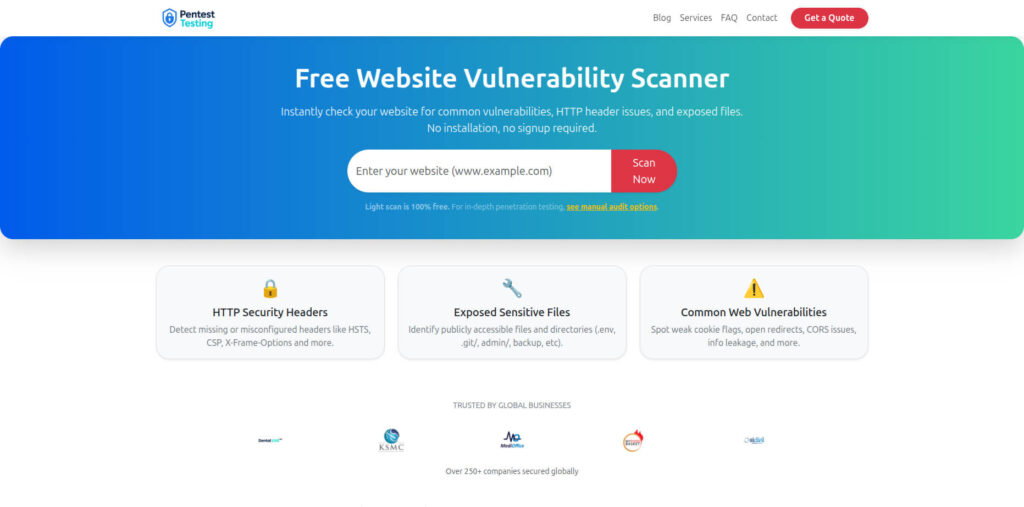
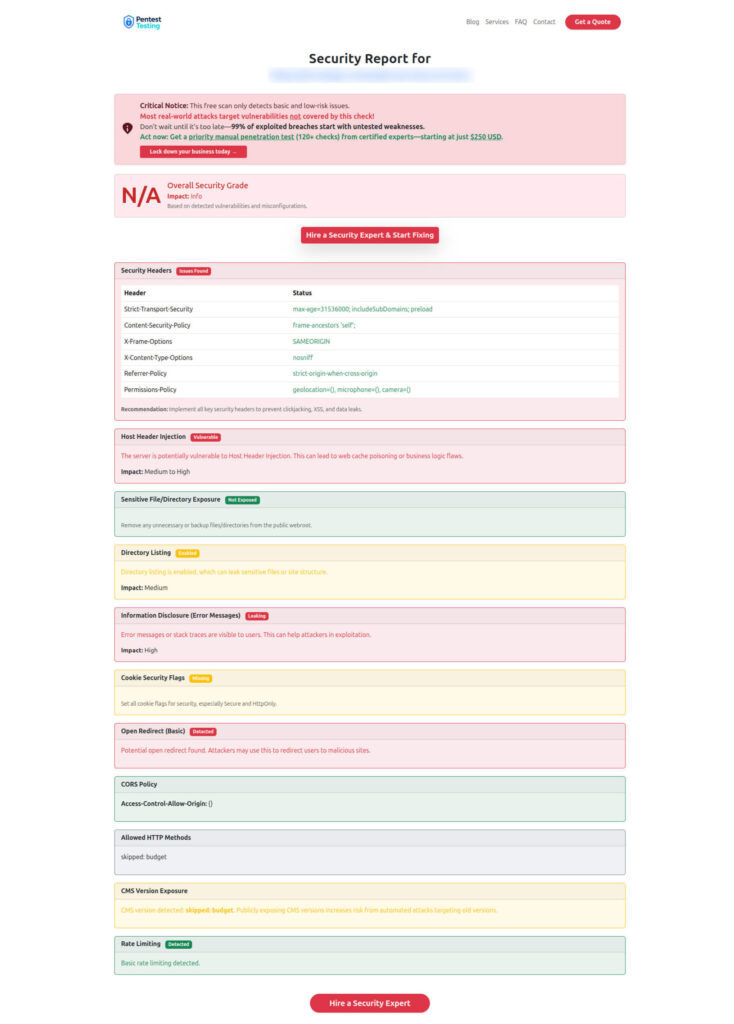
After containment, validate your public-facing website basics (headers, exposed files, obvious misconfigurations). This is not a replacement for DFIR—but it’s a fast sanity check that often catches “easy wins.”
Free Website Vulnerability Scanner tool (Light Scan)
Sample Scan Report to check Website Vulnerability
Related reading (recent posts from our blog)
- https://www.pentesttesting.com/january-2026-patch-tuesday-smb-patch-first/
- https://www.pentesttesting.com/kev-driven-vulnerability-management-sprint/
- https://www.pentesttesting.com/audit-ready-patch-evidence-pack/
- https://www.pentesttesting.com/sonicwall-sma1000-zero-day-48-hour-plan/
- https://www.pentesttesting.com/webkit-zero-day-48-hour-patch-playbook/
- https://www.pentesttesting.com/misconfigured-edge-devices-hardening-sprint/
- https://www.pentesttesting.com/free-vulnerability-scanner-not-enough/
Final Note
If you’re dealing with Gmail hacked, Microsoft 365 compromised, or you suspect a Windows/macOS device infection, we can run a structured digital forensics + DFIR engagement that preserves evidence, identifies root cause, and delivers a clear remediation plan.
- DFIR / Forensic Analysis Services: https://www.pentesttesting.com/digital-forensic-analysis-services/
- Risk Assessment Services: https://www.pentesttesting.com/risk-assessment-services/
- Remediation Services: https://www.pentesttesting.com/remediation-services/
🔐 Frequently Asked Questions (FAQs)
Find answers to commonly asked questions about Critical Digital Forensics Steps.