7 Urgent January 2026 Patch Tuesday Fixes for SMBs
January 2026 Patch Tuesday is a “patch-first” month for SMBs: 114 security fixes plus 3 zero-days, including a Windows Desktop Window Manager (DWM) zero-day that’s actively exploited, and publicly disclosed issues tied to Secure Boot certificate trust and a legacy driver. If your patching tends to drift into “we’ll get to it,” this is the cycle where attackers punish that habit.
This guide gives you an SMB-ready prioritization map (internet-facing → identity/admin → endpoints), plus copy/paste scripts to patch, verify, and generate audit-friendly evidence.
If you want a faster, structured rollout with real proof, see:
- Risk Assessment Services: https://www.pentesttesting.com/risk-assessment-services/
- Remediation Services: https://www.pentesttesting.com/remediation-services/
What changed in January 2026 (why this cycle is high priority)
January 2026 Patch Tuesday stands out for three reasons:
- An actively exploited Windows DWM zero-day (CVE-2026-20805).
DWM issues are often chained in real attacks (think: “initial foothold → local chain → privilege/impact”). Even when a bug looks “local,” exploitation in the wild is your signal to move fast—especially for admin workstations, RDP jump boxes, and users with access to finance/dev systems. - Secure Boot trust chain risk (CVE-2026-21265).
This month includes fixes related to Secure Boot certificate trust, with certificates nearing expiration later in 2026. The practical SMB takeaway: don’t leave firmware/boot trust updates lagging behind—they’re hard to clean up during an incident. - High-impact enterprise components in the mix (SharePoint/Office + Windows services).
Even if you’re “small,” if you run SharePoint Server, Office, or exposed Windows roles (remote access, gateways), your blast radius isn’t small.
The 3-tier SMB patch order (patch-first prioritization map)
Use this map to avoid “patching the loudest ticket” instead of patching what attackers can actually use.
Tier 1 — Internet-facing systems (Target: 24–72 hours)
Patch anything reachable from the internet or that brokers remote access.
Examples to prioritize
- Publicly reachable Windows servers (reverse proxies, app servers, RDS gateways)
- SharePoint Server (if internet reachable, treat as emergency)
- Remote access services (RRAS/VPN roles, gateways)
- Any server that exposes admin panels over the internet (even “temporarily”)
Fast checks (PowerShell)
# List servers (AD) and basic OS info
Get-ADComputer -Filter "OperatingSystem -like '*Server*'" -Properties OperatingSystem |
Select-Object Name, OperatingSystem | Sort-Object Name

# Quick “is it listening” check from a management box (replace targets/ports)
$targets = @("app1.company.com","vpn1.company.com","sp.company.com")
$ports   = @(443,3389,80)
foreach($t in $targets){
  foreach($p in $ports){
    $r = Test-NetConnection -ComputerName $t -Port $p -WarningAction SilentlyContinue
    [PSCustomObject]@{Target=$t; Port=$p; Open=$r.TcpTestSucceeded}
  }
} | Format-Table -AutoSize
Tier 2 — Identity & admin plane (Target: 72 hours)
When identity breaks, everything breaks. Patch domain controllers, identity connectors, and admin workstations quickly.
Examples to prioritize
- Domain controllers, federation/SSO components, Entra ID Connect (if used)
- Admin workstations (where privileged logins happen)
- Management servers (RMM, monitoring, backup consoles)
Key principle
Patch the systems that can mint access (identity) and the systems that can use it (admin endpoints).
Admin workstation “must patch fast” group (PowerShell)
# Example: Create a simple “priority endpoint” list by OU or naming standard
$priorityEndpoints = Get-ADComputer -Filter "Name -like 'ADM-*' -or Name -like 'JUMP-*'" |
Select-Object -ExpandProperty Name

$priorityEndpoints | Out-File .\priority_endpoints.txt -Encoding utf8
Tier 3 — Endpoints & user apps (Target: 7–14 days, but fast-track high-risk)
Most of your fleet lives here, and the DWM zero-day makes “normal” endpoint timing too slow for privileged users.
Fast-track these endpoints within 72 hours
- Admins / IT / finance
- Developers with production access
- Anyone with password vault access
- Any device used to RDP/SSH into servers
Staged rollout tip
- Ring 0: IT + a few pilot devices
- Ring 1: privileged users + exec devices
- Ring 2: remaining endpoints
Patch execution: practical rollout scripts (SMB-friendly)
1) Pull a patch baseline (what’s installed right now)
# Installed hotfixes (quick view)
Get-HotFix | Sort-Object InstalledOn -Descending | Select-Object -First 20

# Export full patch inventory (good for evidence)
Get-HotFix |
Select-Object PSComputerName, HotFixID, Description, InstalledOn |
Export-Csv .\hotfix_inventory.csv -NoTypeInformation
2) Force Windows Update scan + install (workstations)
Option A — Built-in Windows Update triggers (lightweight)
# Requires admin
UsoClient StartScan
UsoClient StartDownload
UsoClient StartInstall
UsoClient RestartDevice
Option B — PSWindowsUpdate module (more control)
# Run in elevated PowerShell
Install-PackageProvider -Name NuGet -Force
Install-Module PSWindowsUpdate -Force

Import-Module PSWindowsUpdate
Get-WindowsUpdate
Install-WindowsUpdate -AcceptAll -AutoReboot
3) Office Click-to-Run update (common SMB deployment)
# Office C2R update client paths vary; this is a common approach
$officeC2R = "${env:ProgramFiles}\Common Files\Microsoft Shared\ClickToRun\OfficeC2RClient.exe"
if(Test-Path $officeC2R){
  & $officeC2R /update user
} else {
  Write-Host "Office Click-to-Run client not found at expected path."
}

# Capture Office C2R config/version for evidence
Get-ItemProperty "HKLM:\SOFTWARE\Microsoft\Office\ClickToRun\Configuration" |
Select-Object ProductReleaseIds, VersionToReport, AudienceId, UpdateChannel |
Format-List
4) SharePoint Server patch verification (if you run it)
If you don’t run SharePoint Server on-prem, skip. If you do—treat it as Tier 1 if internet-facing.
# Run on SharePoint server in SharePoint Management Shell
Get-SPProduct -Local
# After patching, confirm upgrade actions are complete (admin-dependent)
(Get-SPFarm).BuildVersion
Verification checklist (confirm closure after patching)
Patching without verification is how orgs end up with “we patched (probably).” Use the checklist below and keep the output in your evidence pack.
A) Confirm patch install date + reboot completion
# Show updates installed within the last 10 days
$since = (Get-Date).AddDays(-10)
Get-HotFix | Where-Object {$_.InstalledOn -ge $since} |
Sort-Object InstalledOn -Descending |
Format-Table HotFixID, InstalledOn, Description -AutoSize

# Confirm last boot time
(Get-CimInstance Win32_OperatingSystem).LastBootUpTime
B) Capture OS build + key security posture
# OS build and edition
Get-ComputerInfo | Select-Object WindowsProductName, WindowsVersion, OsBuildNumber

# Secure Boot state (UEFI systems)
Confirm-SecureBootUEFI

# Defender health snapshot (if Microsoft Defender AV is in use)
Get-MpComputerStatus | Select-Object AMServiceEnabled, AntispywareEnabled, AntivirusEnabled, RealTimeProtectionEnabled, NISEnabled
C) Spot machines that missed the window (simple fleet audit)
# Example: check multiple machines for last patch date + reboot time (requires WinRM)
$computers = Get-Content .\priority_endpoints.txt
$result = foreach($c in $computers){
  try{
    $os = Invoke-Command -ComputerName $c -ScriptBlock { Get-CimInstance Win32_OperatingSystem }
    $hf = Invoke-Command -ComputerName $c -ScriptBlock { Get-HotFix | Sort-Object InstalledOn -Descending | Select-Object -First 1 }
    [PSCustomObject]@{
      Computer   = $c
      LastBoot   = $os.LastBootUpTime
      LastHotfix = $hf.HotFixID
      HotfixDate = $hf.InstalledOn
    }
  } catch {
    [PSCustomObject]@{Computer=$c; LastBoot=$null; LastHotfix=$null; HotfixDate=$null}
  }
}
$result | Export-Csv .\fleet_patch_status.csv -NoTypeInformation
Change-control + audit-friendly evidence (a “patch proof pack” you can reuse)
If you need to prove patching for compliance, customers, or cyber insurance, build a repeatable evidence pack per cycle.
Recommended folder structure
Patch-Proof-Pack/
  2026-01-Patch-Tuesday/
    00_Scope/
    01_Change-Records/
    02_Patch-Logs/
    03_Verification/
    04_Exceptions/
    05_Integrity/
One-script evidence capture (PowerShell)
param(
  [string]$OutDir = ".\Patch-Proof-Pack\2026-01-Patch-Tuesday\03_Verification"
)

New-Item -ItemType Directory -Force -Path $OutDir | Out-Null

$computer = $env:COMPUTERNAME
$stamp    = Get-Date -Format "yyyyMMdd_HHmmss"

# 1) OS + build
Get-ComputerInfo |
Select-Object WindowsProductName, WindowsVersion, OsBuildNumber, OsHardwareAbstractionLayer |
ConvertTo-Json -Depth 3 | Out-File "$OutDir\${computer}_os_$stamp.json" -Encoding utf8

# 2) Hotfix inventory
Get-HotFix |
Select-Object HotFixID, Description, InstalledOn |
Export-Csv "$OutDir\${computer}_hotfixes_$stamp.csv" -NoTypeInformation

# 3) Secure Boot status (if supported)
try {
  $sb = Confirm-SecureBootUEFI
  "$sb" | Out-File "$OutDir\${computer}_secureboot_$stamp.txt" -Encoding utf8
} catch {
  "Secure Boot check not supported on this device." | Out-File "$OutDir\${computer}_secureboot_$stamp.txt" -Encoding utf8
}

# 4) Office Click-to-Run snapshot (if present)
try {
  Get-ItemProperty "HKLM:\SOFTWARE\Microsoft\Office\ClickToRun\Configuration" |
  Select-Object ProductReleaseIds, VersionToReport, AudienceId, UpdateChannel |
  ConvertTo-Json -Depth 3 | Out-File "$OutDir\${computer}_office_c2r_$stamp.json" -Encoding utf8
} catch {}

# 5) Integrity manifest (SHA256)
$files = Get-ChildItem $OutDir -File
$manifest = foreach($f in $files){
  $h = Get-FileHash $f.FullName -Algorithm SHA256
  [PSCustomObject]@{File=$f.Name; SHA256=$h.Hash}
}
$manifest | Export-Csv ".\Patch-Proof-Pack\2026-01-Patch-Tuesday\05_Integrity\sha256_manifest_$computer`_$stamp.csv" -NoTypeInformation
Exception workflow (time-bound, not “forever”)
# Patch-Proof-Pack/2026-01-Patch-Tuesday/04_Exceptions/exceptions.yaml
- asset: "LEGACY-APP-SERVER-01"
  reason: "Vendor app not compatible with January 2026 cumulative update"
  compensating_controls:
    - "Network ACL restricts inbound to jump host only"
    - "No interactive logons; service account rotated"
    - "EDR policy set to strict"
  owner: "IT Manager"
  approved_by: "CEO/CISO"
  review_date: "2026-02-01"
If you want this packaged into a repeatable compliance motion, use:
- https://www.pentesttesting.com/risk-assessment-services/
- https://www.pentesttesting.com/remediation-services/
Add external proof with our free tool
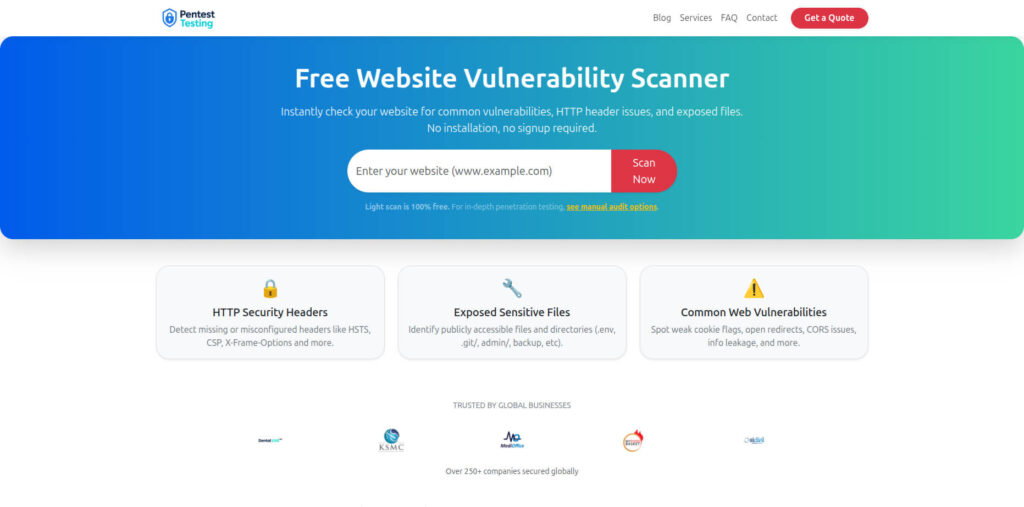
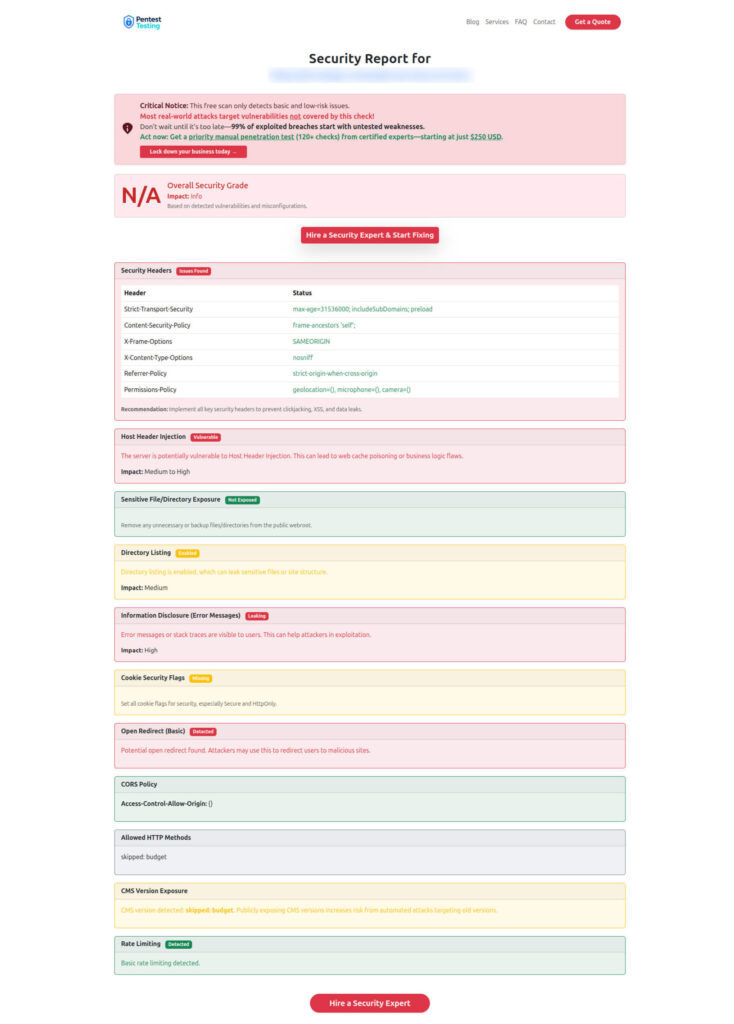
After patching, SMBs often forget the “outside-in” view. Your public web stack (headers, exposed files, weak cookie flags) is still a common initial access path—patching endpoints won’t fix a leaky web perimeter.
Use our free scanner here: https://free.pentesttesting.com/
“Free Website Vulnerability Scanner” landing page
Sample scan report output to “check Website Vulnerability”
Where SMBs get stuck (and how to avoid it)
Common failure modes during January 2026 Patch Tuesday response:
- No asset truth: patching “most machines” isn’t a control.
- No verification: install succeeded ≠ vulnerability reduced.
- No evidence: auditors/customers ask, and you scramble.
If you want a clean “patch → verify → prove” motion, start with:
- Risk assessment: https://www.pentesttesting.com/risk-assessment-services/
- Remediation execution: https://www.pentesttesting.com/remediation-services/
Related reading (recent posts from our blog)
- https://www.pentesttesting.com/kev-driven-vulnerability-management-sprint/
- https://www.pentesttesting.com/audit-ready-patch-evidence-pack/
- https://www.pentesttesting.com/eol-network-devices-replacement-playbook/
- https://www.pentesttesting.com/free-vulnerability-scanner-not-enough/
- https://www.pentesttesting.com/sonicwall-sma1000-zero-day-48-hour-plan/
🔐 Frequently Asked Questions (FAQs)
Find answers to commonly asked questions about January 2026 Patch Tuesday Fixes for SMBs.